Category: Meraki

  • Meraki Dashboard APIs, Part 2.

    Using Meraki Dashboard APIs for Local DNS

    Problem

    The goal in IPsec between Meraki and pfSense was to enable access from a LAN behind the Meraki Z4 to access an internal https server in a LAN behind the pfSense. IPsec allows that. But. What does an https server use to provide the “s” to “http”? That’s right, a TLS certificate. If your client validates the certificates, when you access an https resource that uses a self signed certificate or a certificate issued by an authority not in the client’s chain of trust, you’ll get a warning. That warning is annoying and, depending on the client, can even prevent further access to the server.

    Solution

    So we have 2 solutions:

    • Add the signing certificate authority to the client’s chain of trust. This solves the warning. But not all clients support that (I am looking at you, IoT). And you’d need to do that for every device that will be accessing the server.
    • Use a certificate signed by an authority that the devices already trust. Perfect! I use Let’s Encrypt and it is trusted by most devices.

    Let’s Encrypt validates domain ownership to issue a certificate. It needs to be a publicly accessible domain (so no .local or anything like that). And, lucky, for us, we do have a public domain set up for our DynDNS access. Great! (Maybe some time in the future I’ll write about Let’s Encrypt, but it’s really not complicated. We’ll see.)

    Problem. Part 2

    TLS encryption works by the client submitting a Server Name Indication (SNI) request to the server. The SNI is the domain name that the client is trying to access. It is important because the https server provides a response and the certificate based on the SNI. Even though the underlying communication happens on the IP layer, the client must access the https server by the domain name. If the client accesses the https sever by the server’s IP address, the client will get a warning and we’ll be back where we started.

    Solution. Part 2

    So the solution is obvious. Create an A (or AAAA, if you’re fancy) DNS record for your domain that will point to the https server. The DNS record can point to a private IP address, no problem. But how do you do it with a Meraki Security Appliance (or a Teleworker Gateway)? We have a few options:

    • Run our own DNS server, like Pi-hole. I love Pi-hole and run it on the pfSense LAN. But I’d need an additional device on the Z4 LAN just to serve a single DNS record. I’m not a fan of this option.
    • Create a DNS record in a public DNS resolver. Since I do have a domain with Cloudflare, I can easily create a DNS record with them. This way a Cloudflare’s server will be queried to resolve the domain. I’m not a huge fan of this option either. This way we’re advertising our internal server’s IP address to the entire internet. Yes, the IP is internal and is not globally routable, but still…

    Luckily, Meraki provides just the solution for this problem in the form of Local DNS records. What it does is you can create a DNS record and an MX (or a Z) will respond to the query with the IP address configured. As of September 2025, this function is not available through the Dashboard and must be configured through the Dashboard APIs. There are additional requirements for this to work1:

    • MX (Z) running firmware 19.1+
    • DNS namservers setting under DHCP Settings must be configured as “Proxy to Upstream DNS”
    • The Network must not be a part of a Template.

    So, let’s get to it.

    Local DNS with Meraki Dashboard APIs script

    Now, we’re finally got to the core of the post. Let’s set up the script and the functions for us to execute the API calls.

    On a high level, to set up Local DNS records we need:

    1. Create an organization’s Local DNS Profile
    2. Create a Local DNS record in the profile we created
    3. Assign the profile to a network

    We’ll expand the code we started in Part 1. We’ll need a name for a profile we’ll be creating. For simplicity, I use the same name as the network we’ll be assigning the profile to. We’ll need a fully qualified domain name and the IP address that we’ll be using for the record.

    import requests
    import json
    
    API_KEY = "<API_KEY_HERE>"
    Organization = "<ORGANIZAION_NAME_HERE>"
    Network = "<NETWORK_NAME_HERE>"
    
    URL = "https://api.meraki.com/api/v1"
    
    Profile = Network
    Domain = "<fullyqualified.domain[.]tld>"
    IP_addr = "<192.168.12.34>"

    Now, let’s create our functions.

    First, we need to get our Organization ID. We could get it from the Dashboard, but it’s easier to just make an API call. The function needs the Organization’s name. It’ll then query the API using the API key and will return the matching Organization ID, or nothing (None) if an organization with such name is not found. So, pay attention to the organization’s name.

    #Fuction to get Organization ID
    def getOrganizations(target_name):
        payload = None
        headers = {
            "Authorization": f"Bearer {API_KEY}",
            "Accept": "application/json"
        }
        response = requests.request('GET', f"{URL}/organizations/", headers=headers, data = payload)
        json_str = response.content.decode('utf-8')
        data = json.loads(json_str)
        for organization in data:
            if organization.get("name") == target_name:
                return organization.get("id")
        return None

    Next, we need a function to get the Network ID. Similar to the function above:

    #Function to get Network ID 
    def getOrganizationNetworks(target_name):
        payload = None
        headers = {
            "Authorization": f"Bearer {API_KEY}",
            "Accept": "application/json"
        }
        response = requests.request('GET', f"{URL}/organizations/{Org_ID}/networks", headers=headers, data = payload)
        json_str = response.content.decode('utf-8')
        data = json.loads(json_str)
        for network in data:
            if network.get("name") == target_name:
                return network.get("id")
        return None 

    Next, we create an organization Local DNS profile. It needs the Organization ID and the name for the profile (we use the same name as the network).

    #Function to Create an Organization Local DNS Profile
    def createOrganizationApplianceDnsLocalProfile(Org_ID, prof_name):
        payload = f'''{{ "name": "{prof_name}" }}'''
        headers = {
            "Authorization": f"Bearer {API_KEY}",
            "Content-Type": "application/json",
            "Accept": "application/json"
        }
        response = requests.request('POST', f"{URL}/organizations/{Org_ID}/appliance/dns/local/profiles", headers=headers, data = payload)
        json_str = response.content.decode('utf-8')
        data = json.loads(json_str)
        return data

    After that, we need a function to get the Profile ID for the profile we just created. Technically, you can get the ID at the time of the profile creation, but you’d need this function if you ever add records to an already existing profile.

    #Function to get Profile ID for a particular Profile
    def getOrganizationApplianceDnsLocalProfilesSpecific(ProfName):
        payload = None
        headers = {
            "Authorization": f"Bearer {API_KEY}",
            "Accept": "application/json"
        }
        response = requests.request('GET', f"{URL}/organizations/{Org_ID}/appliance/dns/local/profiles", headers=headers, data = payload)
        json_str = response.content.decode('utf-8')
        data = json.loads(json_str)
        for item in data.get('items', []):
            if item.get('name') == ProfName:
                return item.get('profileId')
        return None

    Now, we need a function to create the Local DNS record. It needs the Organization ID, Profile ID, FQDN, and the IP address.

    #Function to Create a DNS Local Record
    def createOrganizationApplianceDnsLocalRecord(Org_ID,ProfID,Dom,IP):
        payload = f'''{{
        "hostname": "{Dom}",
        "address": "{IP}",
        "profile": {{ "id": "{ProfID}" }}
        }}'''
        headers = {
            "Authorization": f"Bearer {API_KEY}",
            "Content-Type": "application/json",
            "Accept": "application/json"
        }
        response = requests.request('POST', f"{URL}/organizations/{Org_ID}/appliance/dns/local/records", headers=headers, data = payload)
        json_str = response.content.decode('utf-8')
        data = json.loads(json_str)
        return data

    Finally, we need a function to assign the profile to the network. This what enables the security appliance (or the teleworker gateway) to actually resolve the domain name into the IP address for its clients. It requires the Organization ID, Network ID, and the Profile ID.

    #Fuction to assign the DNS Records Profile to a Network
    def bulkOrganizationApplianceDnsLocalProfilesAssignmentsCreate(Org_ID,Net,Prof):
        payload = f'''{{
        "items": [
            {{
                "network": {{ "id": "{Net}" }},
                "profile": {{ "id": "{Prof}" }}
            }}
        ]
        }}'''
        headers = {
            "Authorization": f"Bearer {API_KEY}",
            "Content-Type": "application/json",
            "Accept": "application/json"
        }
        response = requests.request('POST', f"{URL}/organizations/{Org_ID}/appliance/dns/local/profiles/assignments/bulkCreate", headers=headers, data = payload)
        json_str = response.content.decode('utf-8')
        data = json.loads(json_str)
        return data

    After defining the functions, we need to call them in the following order to create the Local DNS record in our network.

    Org_ID = getOrganizations(Organization)
    Netw = getOrganizationNetworks(Network)
    createOrganizationApplianceDnsLocalProfile(Org_ID,Profile)
    ProfNumb = getOrganizationApplianceDnsLocalProfilesSpecific(Profile)
    createOrganizationApplianceDnsLocalRecord(Org_ID,ProfNumb,Domain,IP_addr)
    bulkOrganizationApplianceDnsLocalProfilesAssignmentsCreate(Org_ID,Netw,ProfNumb)

    This should be it. To validate that the record is created you’ll need one more function.

    #Function to get Local DNS Records
    def getOrganizationApplianceDnsLocalRecords(Org_ID):
        payload = None
        headers = {
            "Authorization": f"Bearer {API_KEY}",
            "Accept": "application/json"
        }
        response = requests.request('GET', f"{URL}/organizations/{Org_ID}/appliance/dns/local/records", headers=headers, data = payload)
        json_str = response.content.decode('utf-8')
        data = json.loads(json_str)
        return data

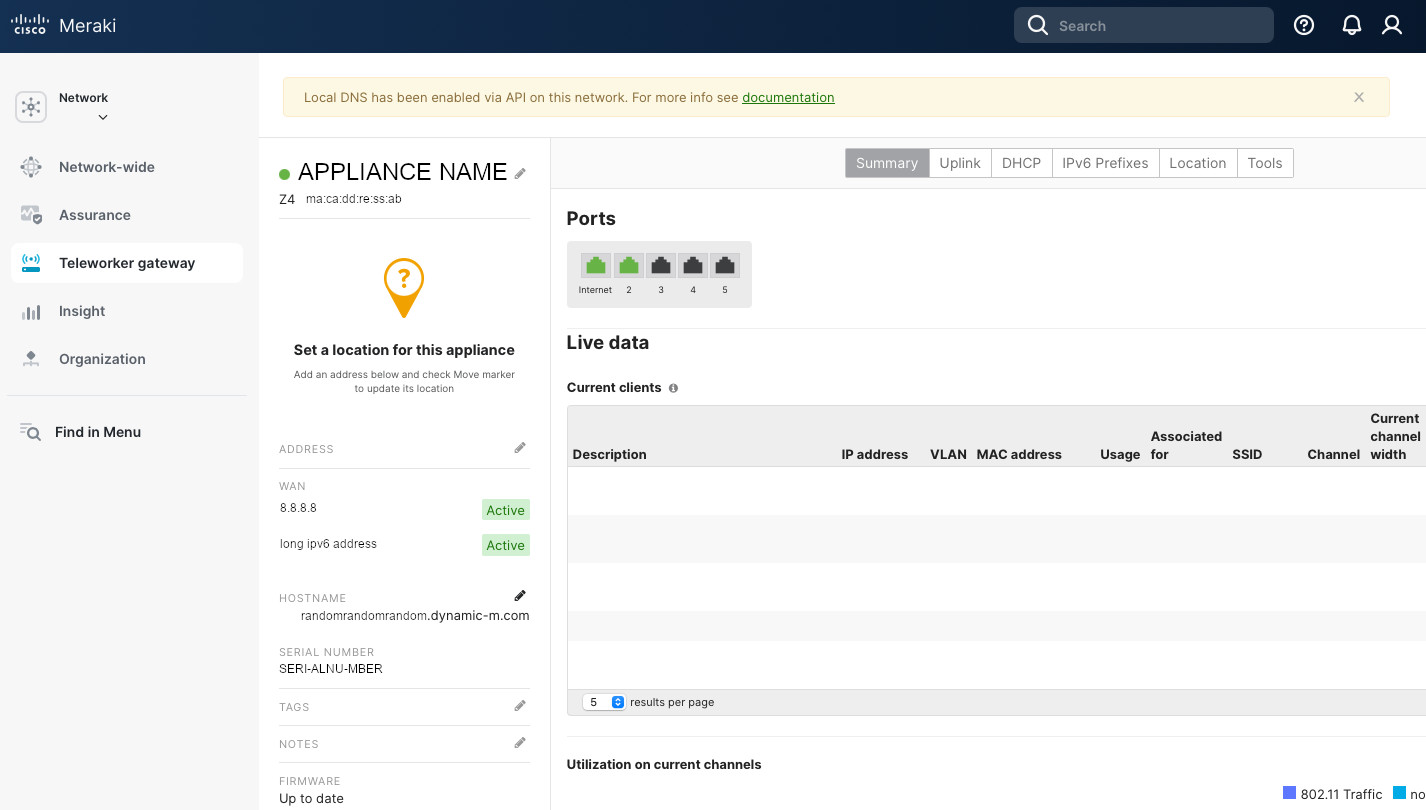
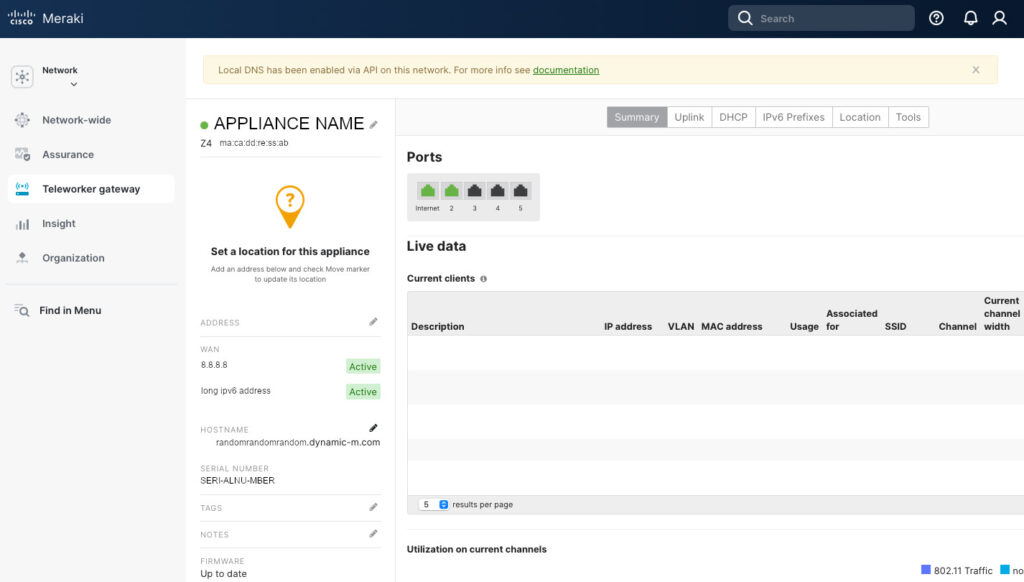
    After all of this, you should have this beautiful banner at the top of your Appliance Status page indicating that this appliance has the local DNS record. And the devices on my Z4’s LAN successfully resolve the domain name into the IP address across the IPsec tunnel. And no annoying certificate warnings!

    Providing additional functionality through APIs only instead of the Dashboard is, in my opinion, a bit antithetical to the Meraki’s idea of simplicity. But, perhaps, the Local DNS is a too niche of a requirement. Anyways, beggars can’t be choosers and I pick having the option, even through the APIs, over not having the option at all. And APIs are totally Enterprise. So, I am not complaining…
    1. https://documentation.meraki.com/MX/Local_DNS_Service_on_MX ↩︎
  • Meraki Dashboard APIs.

    Expanding Meraki capabilities with the help of APIs.

    Some of you noticed a banner on top of the Appliance Status page in the IPsec between Meraki and pfSense post. The banner read “Local DNS has been enabled via API on this network. For more info see documentation“. This is a post about Meraki Dashboard APIs and how they expand what the platform can do.

    Meraki Dashboard APIs

    Meraki utilizes RESTful APIs to expand the device capabilities and allow for automation of networking tasks. For example, you can create provisioning scripts, or scripts to read the logs. This is done, in part, to get around some of the limitation of the GUI Meraki Dashboard. Meraki has a pretty good documentation in general, and for APIs in particular. You can find it here.

    However, while the documentation describes the operation of each API call, request and response schemas, and even provides code snippets, it does not go in detail over the order of operations to accomplish tasks. For example, in order to enable VLANs in a security appliance, one needs to go to Security Appliance & SD-WAN -> Addressing & VLANs. There click on “VLANs” and then create a VLAN. What seems like one operation in the Dashboard is actually accomplished by two API calls. The first one is to enable VLANs with the “updateNetworkApplianceVlansSettings” operation ID and then create a new VLAN. It makes sense but can be confusing when doing it the first time.

    For most API calls you need either an Organization ID or a Network ID. The Organization ID can be found at the bottom of every page of the Meraki Dashboard. Finding the Network ID is not trivial and the easiest way for me is to run an API call with “getOrganizationNetworks” operation ID.

    Setting up API calls

    But before you can even run an API call, you’ll need the API key. To obtain the API key, in the Meraki Dashboard, go to “My Profile” (top right hand corner), scroll about half way down and click “Generate new API key” under the “API access” section. Save this key in a safe place. Protect this key as it allows for unrestricted (up to the permission level of the account for which the API key has been created) modification access to your organization. Do NOT share this key. It is bad!

    There are many methods of making API calls. You can get as low level as cURL, use Python, use Meraki Python Library, use Postman, use Ansible or Terraform. I use Python with requests and json modules. “Why not use Meraki Python Library?”, you ask. That’s a fair question. I, to a certain degree, subscribe to the idea of “living off the land“. If I don’t have to install an additional package, I prefer not to. Also, I prefer to understand what’s going on and feel the Meraki Python Library abstracts to much away. There’s nothing wrong with using Meraki Python Library, I just prefer not to.

    “So, why not cURL, then?”. Again, fair point. I use cURL for API calls in my DynDNS script, and use awk to parse the response. However, it gets messy pretty quick and we need to have a more robust solution. Thus we’ll be using json module for parsing the API responses and requests to make the API calls. So, let’s start building our API Python script.

    Below is the beginning of the script. We import requests and json modules. We add our API key. Again, make sure you protect it. Do NOT share your script with the API key in it. It is bad! You can store it in a different file and then read it from there or have it entered interactively. We input our organization name. This is done if you manage multiple organizations and need to select which one you’ll be working on. And we specify the name of the network we’ll be operating on. We’ll use this name to pull the Network ID that we’ll use for most of the calls. And we enter the base URL for the API calls. This base will be appended to to performa various functions.

    import requests
    import json
    
    API_KEY = "<API_KEY_HERE>"
    Organization = "<ORGANIZAION_NAME_HERE>"
    Network = "<NETWORK_NAME_HERE>"
    
    URL = "https://api.meraki.com/api/v1"

    I think I’ll stop here for now. Next time we’ll explore the Local DNS feature. Why I use it and how to set it up. APIs are very enterprise. So we’re getting even closer to living “Enterprise. At home”…

  • IPsec between Meraki and pfSense.

    Over the weekend, I visited my other location and set a Meraki Z4 up. This also allowed me an opportunity to configure a Site-to-Site IPsec VPN tunnel between this location and my main location that’s running a pfSense appliance. This tunnel will be used for off-site backup transfers.

    The process of setting up the site-to-site IPsec tunnel is fairly straightforward. I think it took me five times as long to write this post than to actually get it running. We’re going to start with the Meraki side and then will shift gears to pfSense. There will be information that we need to share between the two devices during the set up. So, let’s get going.

    Meraki

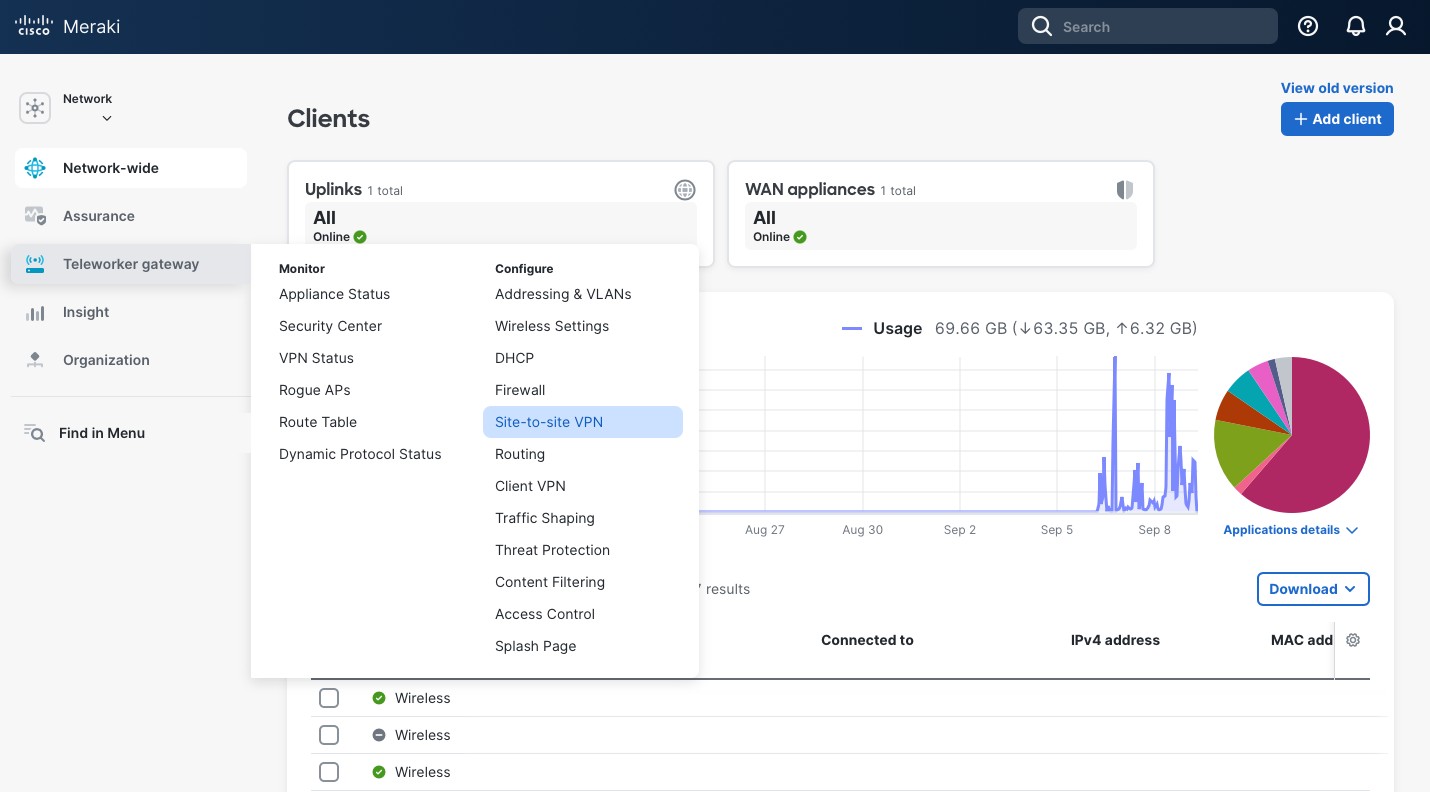
    First, go to your Meraki Dashboard network and click Security Appliance (or, in my case, Teleworker gateway) -> Configure -> Site-to-site VPN.

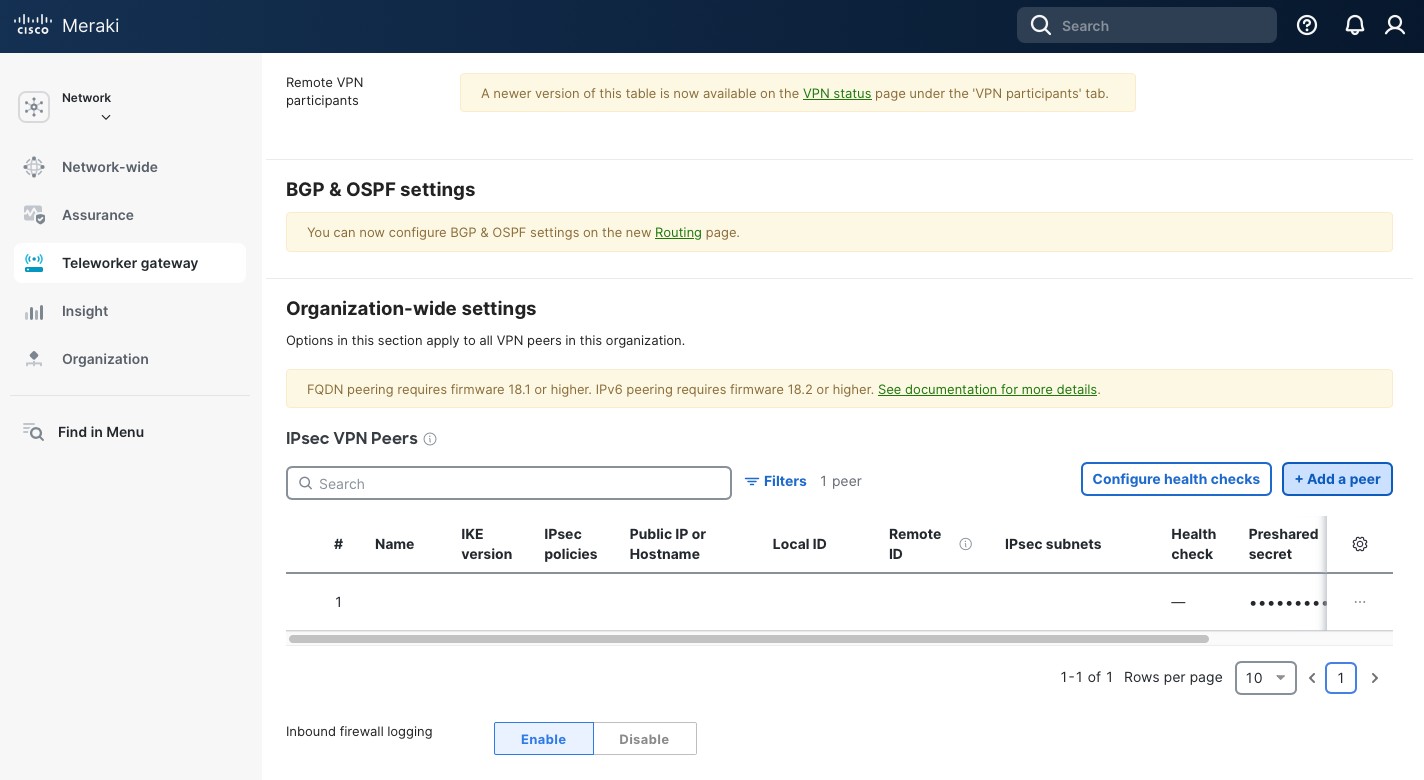
    There, scroll about half way, and, under the “IPsec VPN peers” section, click “+ Add a peer”.

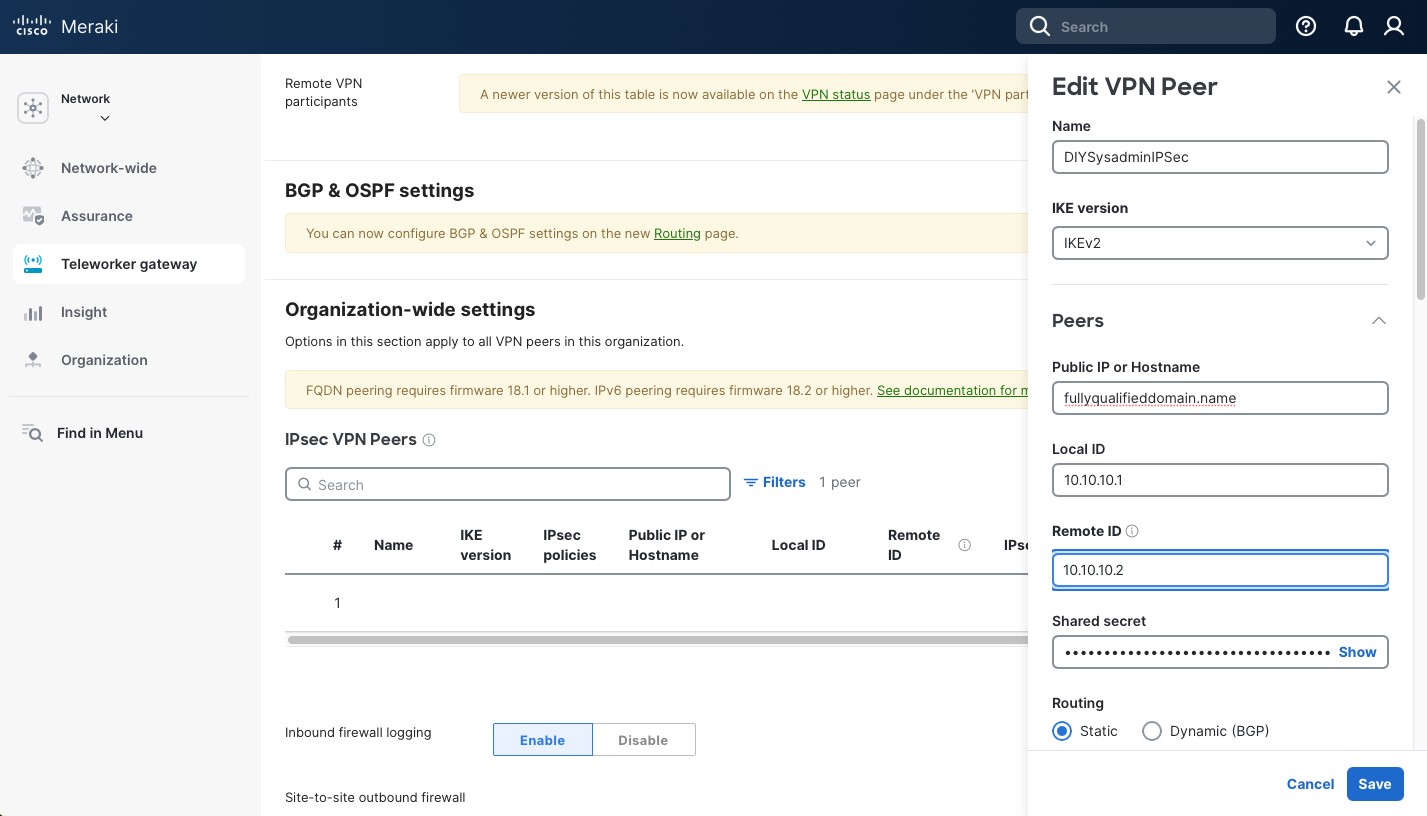
    In the new opened pane:

    • Type in a “Name”. This name will be used to identify the peer, so choose the name that would make sense to you.
    • Select “IKE version” IKEv2 (it allows a bit more options compared to IKEv1).
    • In the “Public IP or Hostname” use the IP or the hostname of your remote site. In my case, I am using the fully qualified domain name of my pfSense site. Note, that FQDN peering requires MX (or Z) appliance firmware of 18.1 or higher.
    • Type in a “Local ID”. I prefer to use a private IP that is not used in my environment.
    • Type in a “Remote ID”. I use the same approach as with the Local ID.
    • Next, type in “Shared secret”. This secret will also be used on our pfSense appliance, so make sure you copy it somewhere. Use a strong randomly generated key. You won’t need to type it in so the more complex the better.

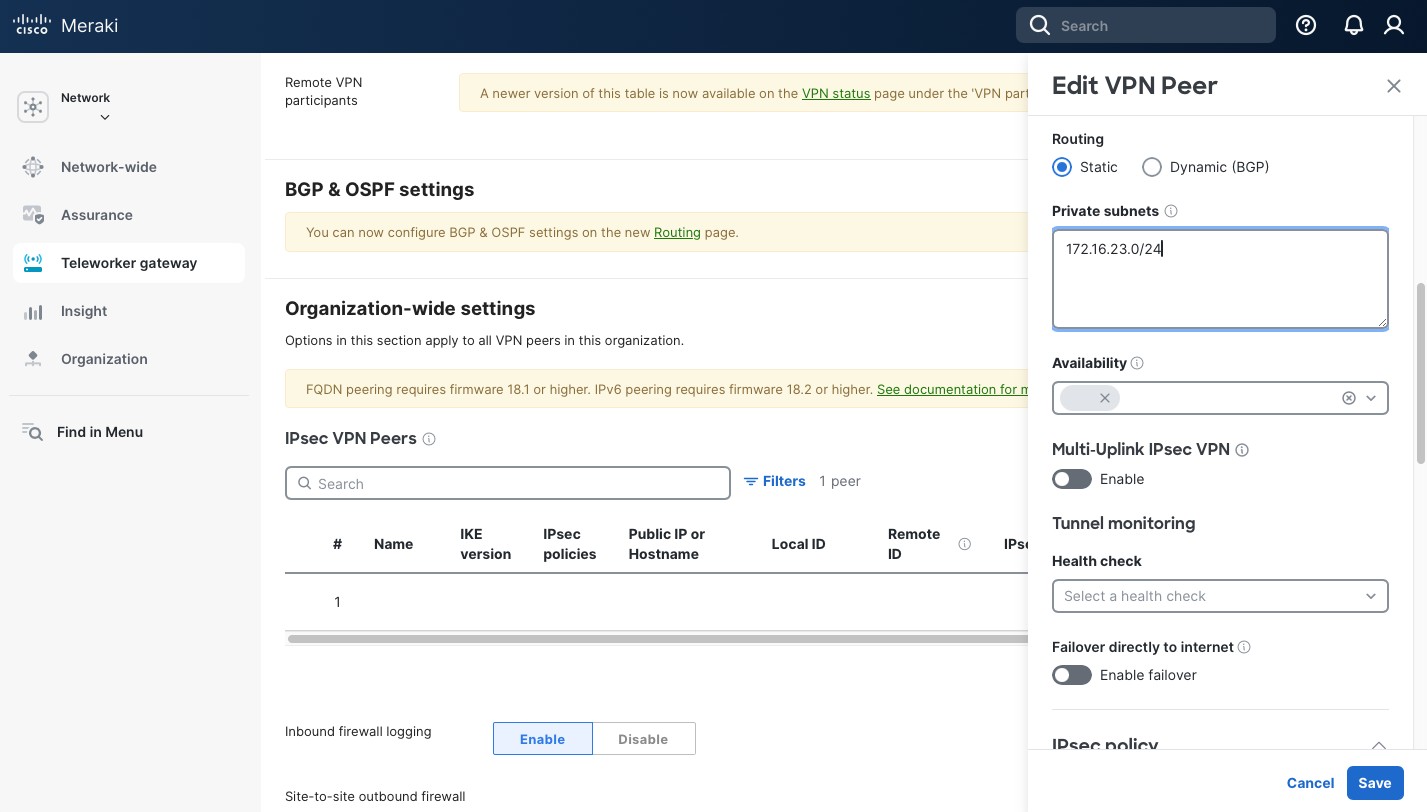
    Scrolling down, select:

    • “Static” under “Routing”.
    • In the “Private subnets”, include the subnets the remote peer (pfSense, in my case) will be advertising to this location.
    • “Availability” – select the network this IPsec peer should be peering with.
    • Select options for “Tunnel monitoring”. I am not using anything at the moment, but it does require a Health check option to be set up.
    • Keep “Failover directly to internet disabled”. We’re only tunneling local subnets so this option is irrelevant to us.

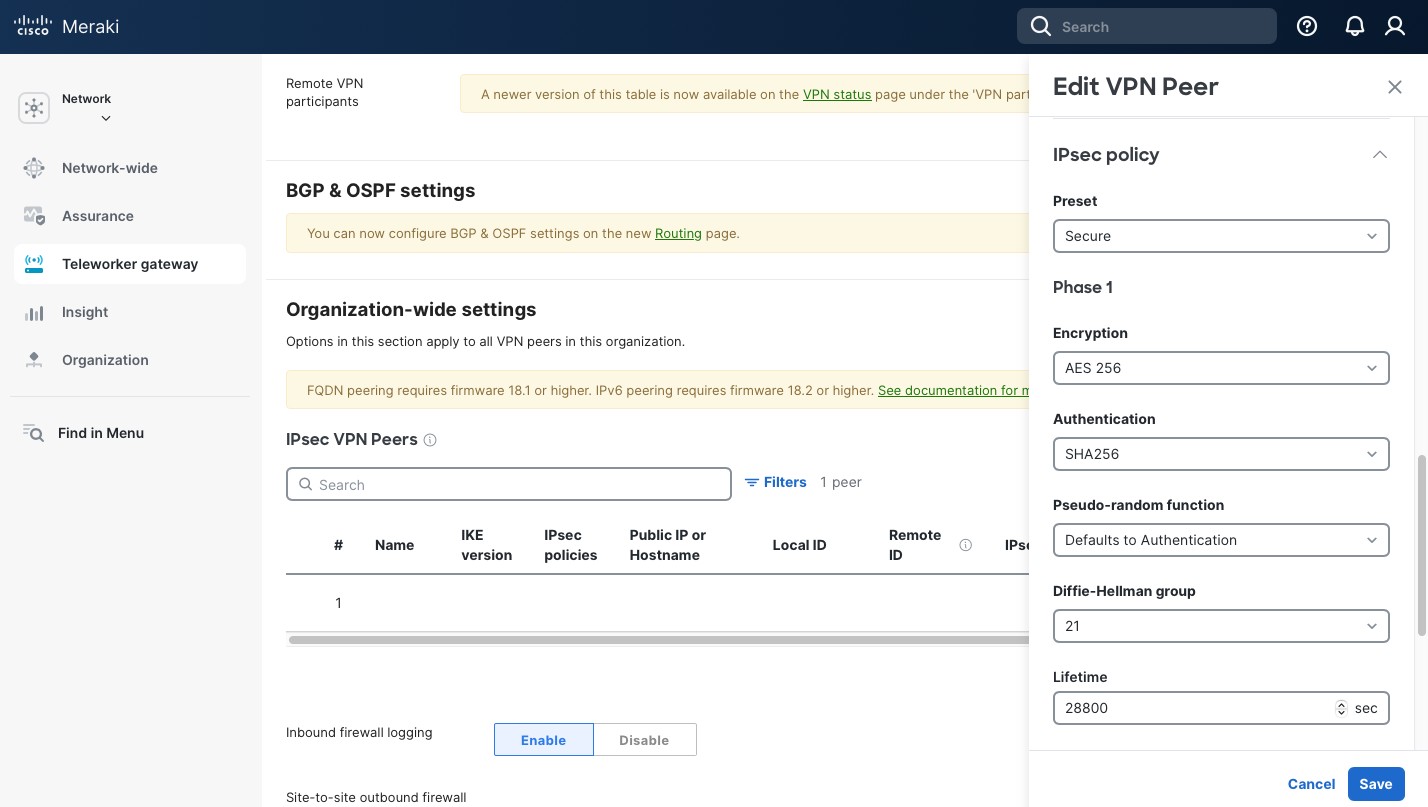
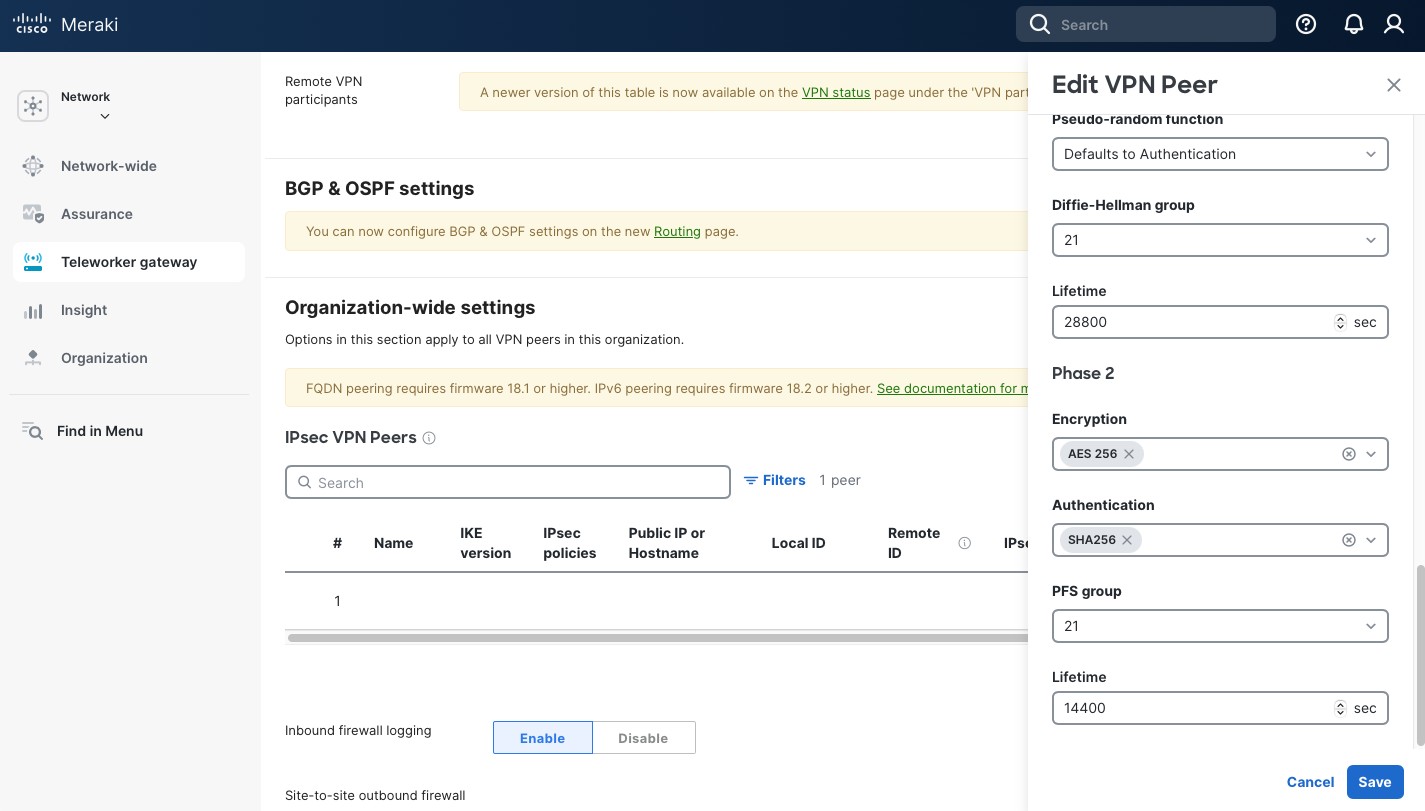
    Now, in the “IPsec policy”, select “Preset” “Secure”. It has the highest settings that the Meraki security appliance currently supports and it makes setup easier. The settings for Phase 1 and Phase 2 are below. Take a note, as we’ll need to use the same setting on our remote pfSense peer. When done click “Save” and then “Save Changes” button at the bottom of the page.

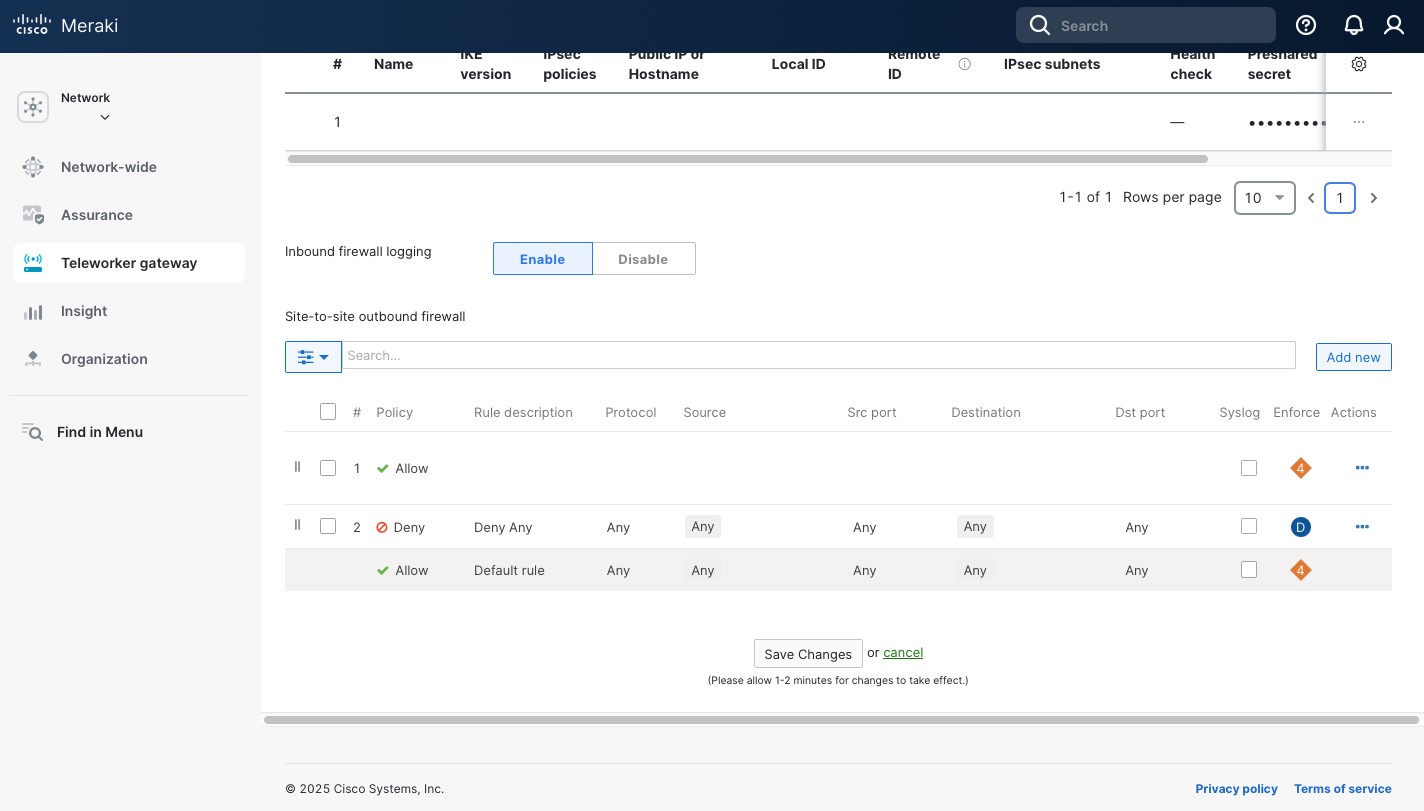
    At the bottom of the Site-to-site VPN page you can set the Site-to-site outbound firewall rules. These rules apply to traffic going across the IPsec tunnel. By default, Meraki uses Allow Any. I prefer to allow only what I need and also Deny Any right above the Allow Any “Default rule”.

    We’re pretty much done with the Meraki side. But, since this tunnel is between two residential locations, we have a dynamic public DNS. Previously, I described how I manage the dynamic public IPs with DynDNS. Meraki makes it super easy as it manages the DynDNS records by default. Go to Security appliance (Teleworker gateway) -> Appliance status. There copy the “Hostname” (ending with .dynamic-m[.]com). We’ll use it when we set up pfSense.

    pfSense

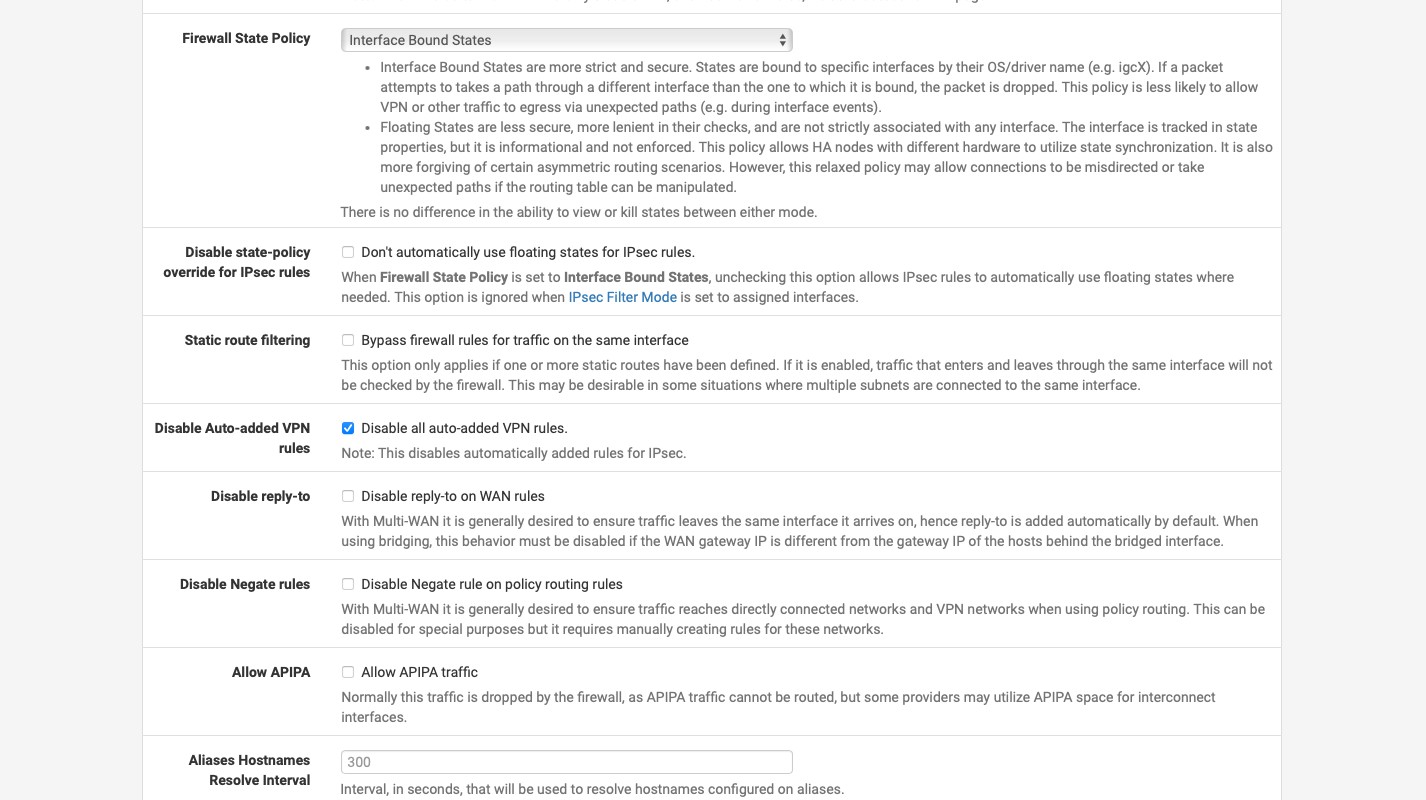
    By default, Meraki denies any incoming traffic. When you create an IPsec tunnel, it allows it through the firewall automatically. pfSense does the same. I’m not a dan of it as I’d like more control over my firewall rules. So the first thing we’ll do is go to System -> Advanced -> Firewall & NAT. About half way through you’ll see the “Advanced Options” section. In this section check “Disable all auto-added VPN rule” and click “Save” at the very bottom of the page.

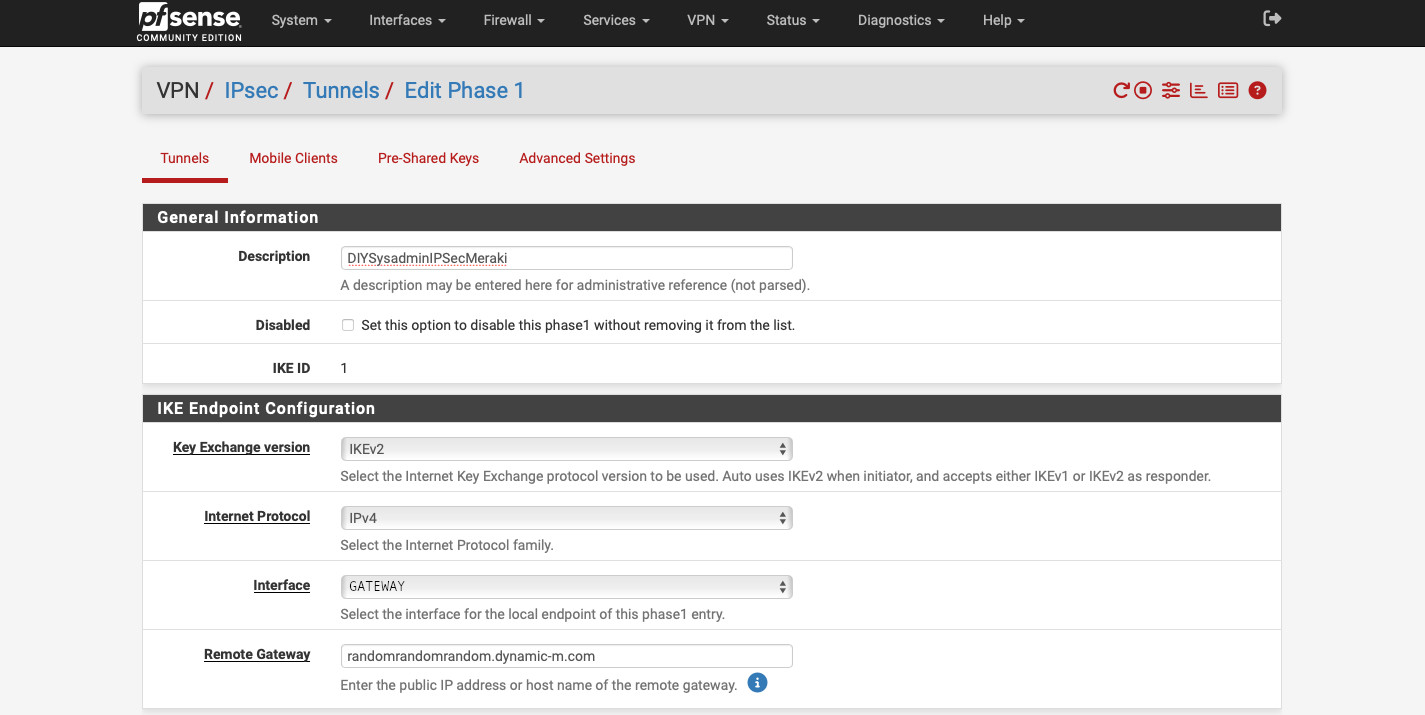
    Now go to VPN -> IPsec. There click the “+ Add P1” green button. There:

    • Enter the “Description”. This is only for administrative purposes so choose something that would make sense to you.
    • Select “Key Exchange version” “IKEv2”.
    • In “Interface”, select the interface that is connected to the internet. It is “GATEWAY” in my example.
    • In the “Remote Gateway” type in the fully qualified domain name for your Meraki appliance. We copied it from the Appliance status page, it ends with .dynamic-m[.]com.
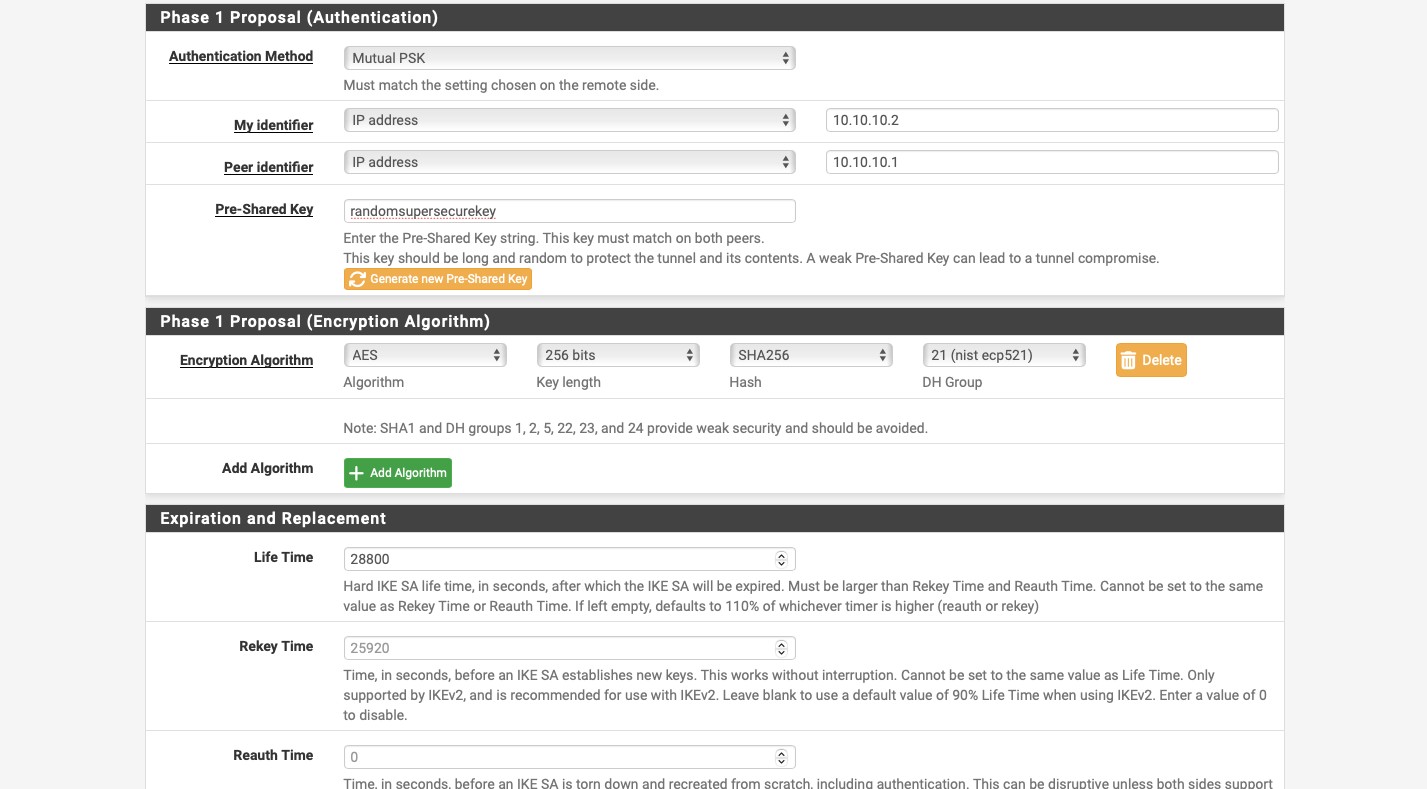
    • For the “Phase 1 Proposal (Authentication)” select “Mutual PSK” for the “Authentication Method”.
    • For “My identifier” and “Peer identifier” use the same IP addresses you used on the Meraki side (the Meraki identifier is the “Peer identifier” in this case).
    • Paste the super secret and complex key you used on the Meraki appliance into the “Pre-Shared Key” field.
    • For the “Phase 1 Proposal (Encryption Algorithm), we need to use the same settings as on our Meraki appliance.
    • Use “AES” for “Algorithm”.
    • Use “256 bits” for “Key length”.
    • Use “SHA256” for “Hash”.
    • Use “21 (nist ecp521)” for “DH group”.
    • Select “Life Time” of “28800”.

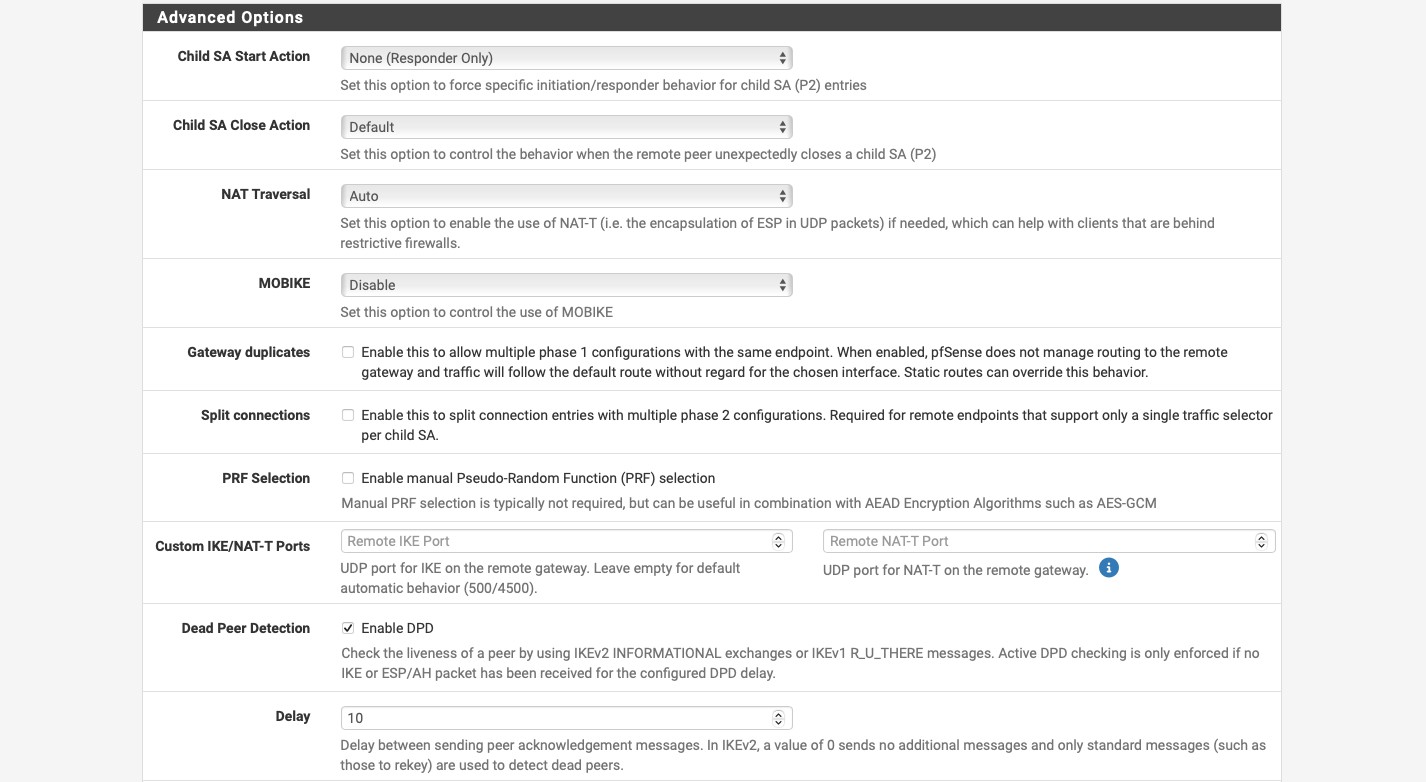
    In the “Advanced Options” select “None (Responder Only)” for “Child SA Start Action”. This forces the Meraki device to initiate the tunnel. You can leave everything else at default. Click the blue “

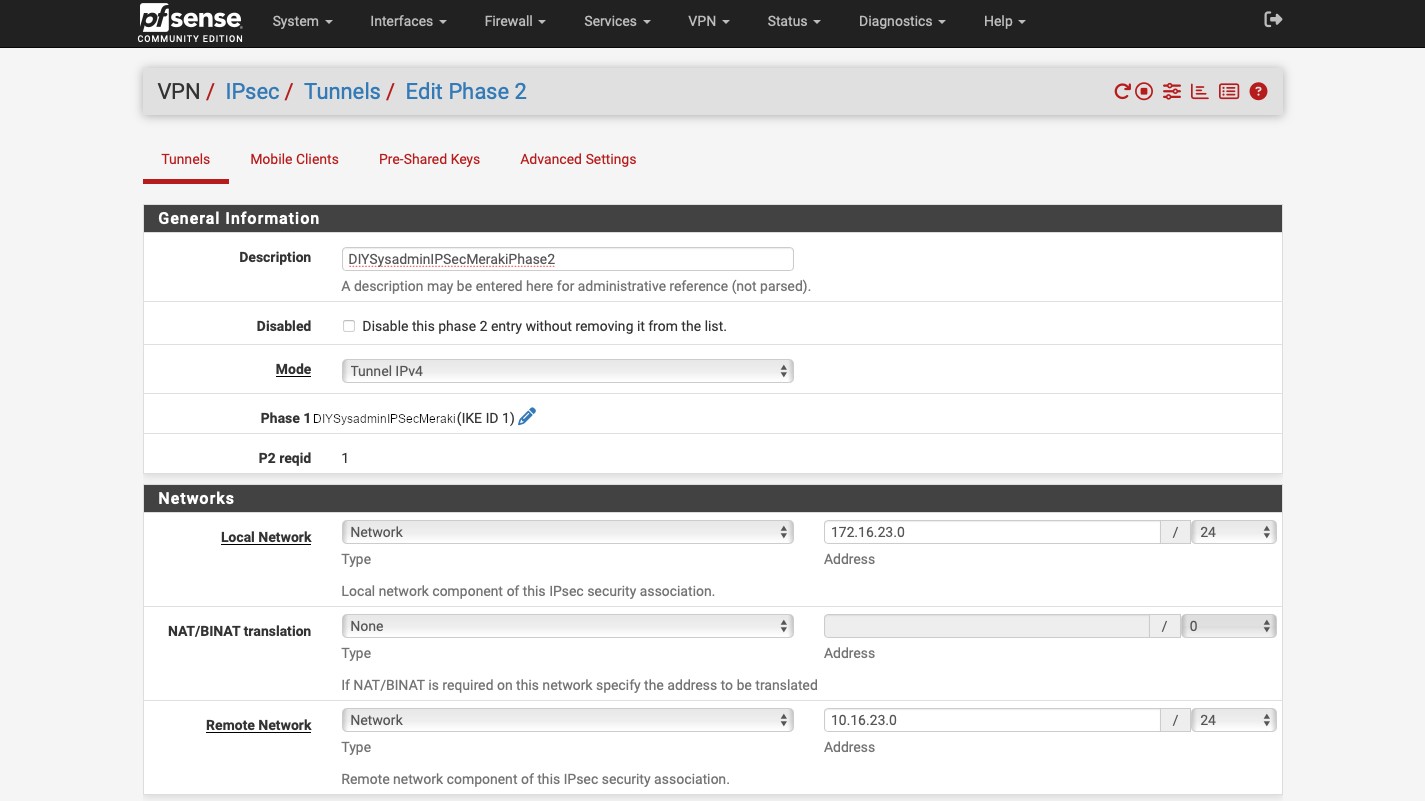
    Now, in the “VPN / IPsec / Tunnels” expand the item we’ve just created by clicking on the “Show Phase 2 Entries” button and then click the green “+ Add P2” button. There:

    • Enter a description.
    • Select “Tunnel IPv4” for the “Mode”. This is the mode we’ll use for the static routing through our IPsec tunnel.
    • Under “Networks” subsection, for “Local Network” select “Network” for the “Type” and enter the IP sunset that the pfSense appliance will be sharing through the tunnel.
    • Do the same thing for the “Remote Network” but enter the IP subnet that the Meraki device will be sharing.

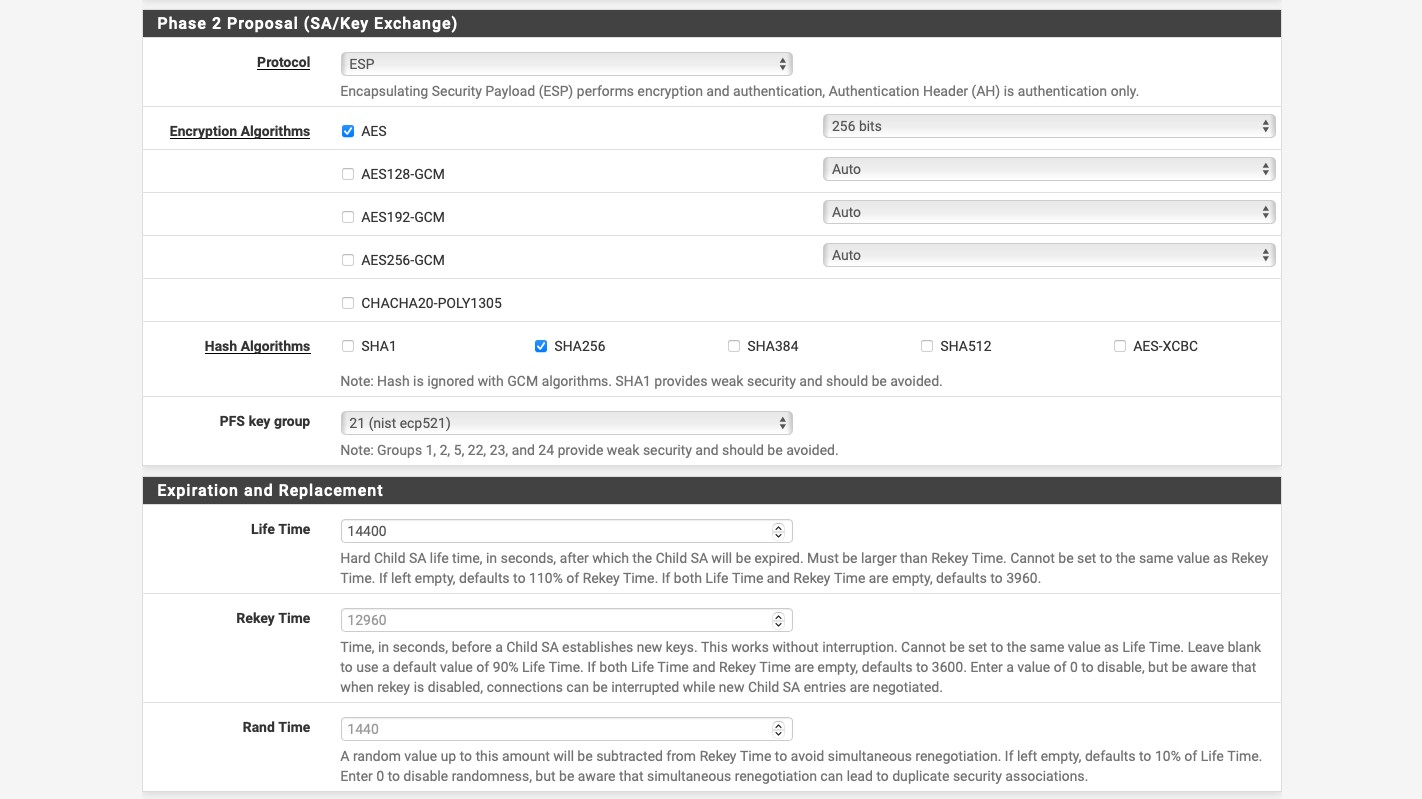
    In the “Phase 2 Proposal (SA/Key Exchange)”, enter:

    • “ESP” for “Protocol”. This is what enables encryption of the IPsec tunnel.
    • “AES” and “256 bits” for “Encryption Algorithms”.
    • “SHA256” for “Hash Algorithms”.
    • “21 (nist ecp521)” for “PFS key group”.
    • Under the “Expiration and Replacement” select “14400” for “Life Time”. And then click the blue “Save” button.

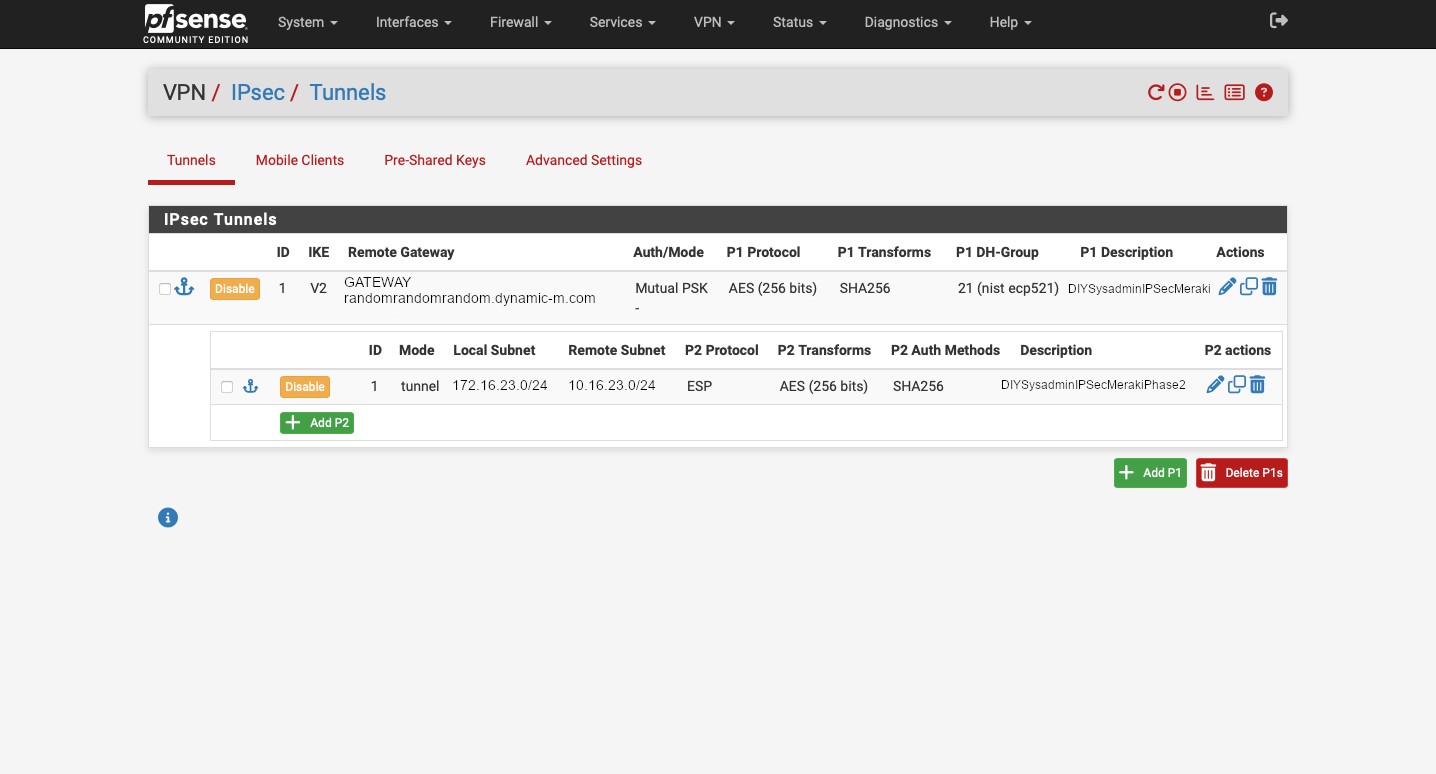
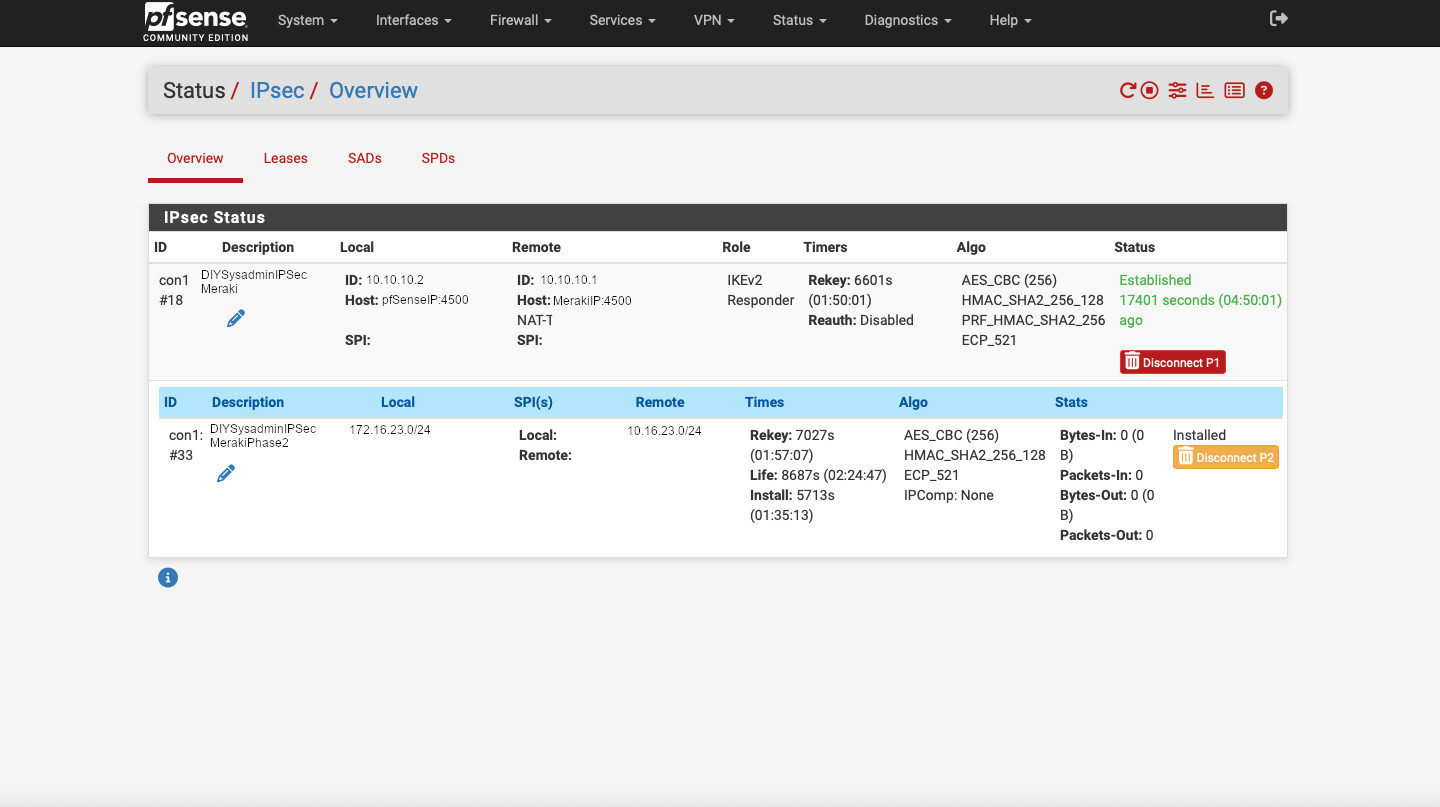
    OK. We’re done with the tunnel set up. It should look something like this:

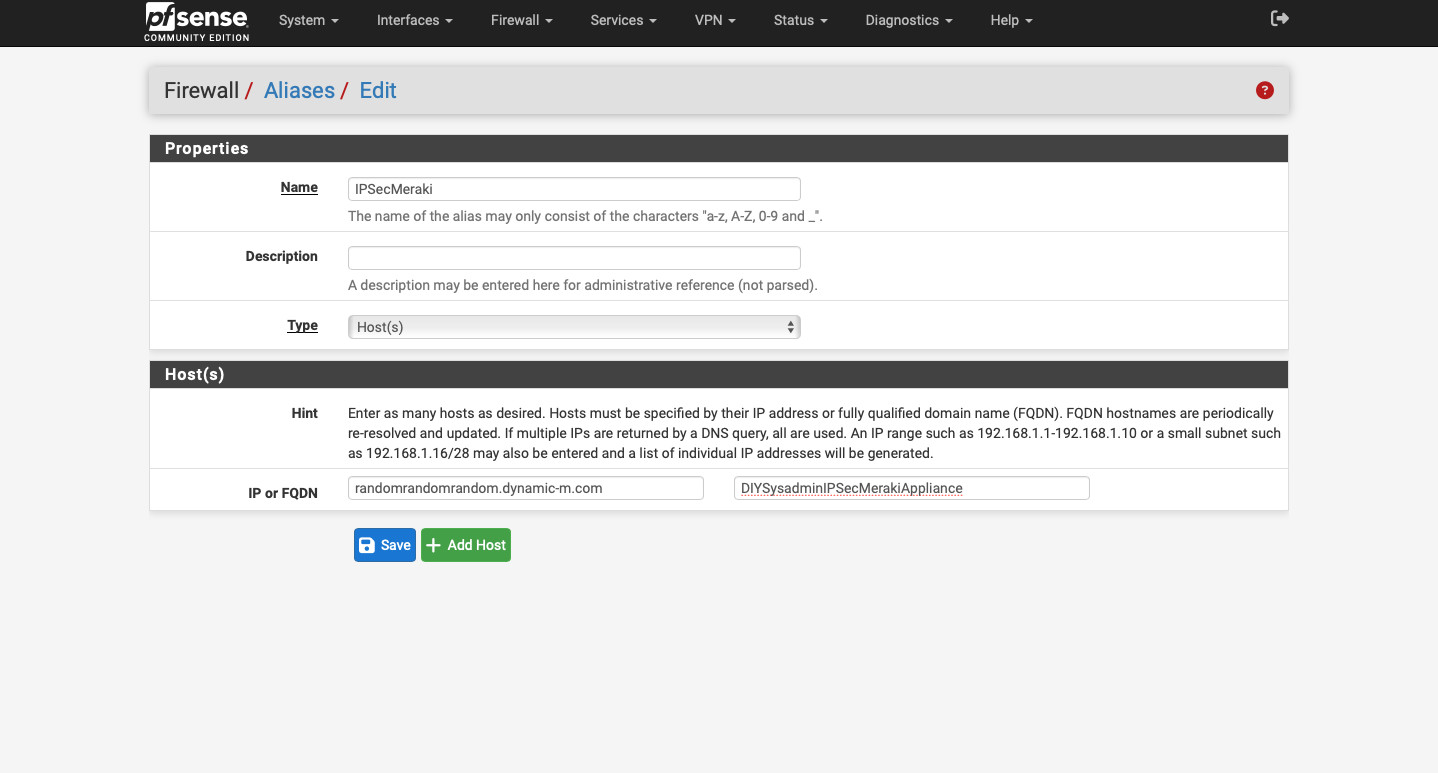
    But our VPN tunnel will not be established, because we disable all auto-added VPN rules. So let’s change that. Go to Firewall -> Aliases -> IP and click the green “+ Add” button. Here we’ll create an alias for our Meraki device. Aliases in pfSense act sort of like groups. We can put multiple items into an alias and then create a firewall rule using it. If we need to make any changes, we can edit alias and those changes will propagate into the firewall rules. For this alias:

    • Create a name following the requirements. We will use this name when we create our firewall rules.
    • Enter a description.
    • For “Type” select “Host(s)”.
    • For “IP or FQDN” enter the fully qualified domain name for the Meraki appliance that we copied from Appliance status page from the Meraki Dashboard.
    • Type in a description that will make sense to you if you need to figure out what you did six months down the road.
    • Click the blue “Save” button.

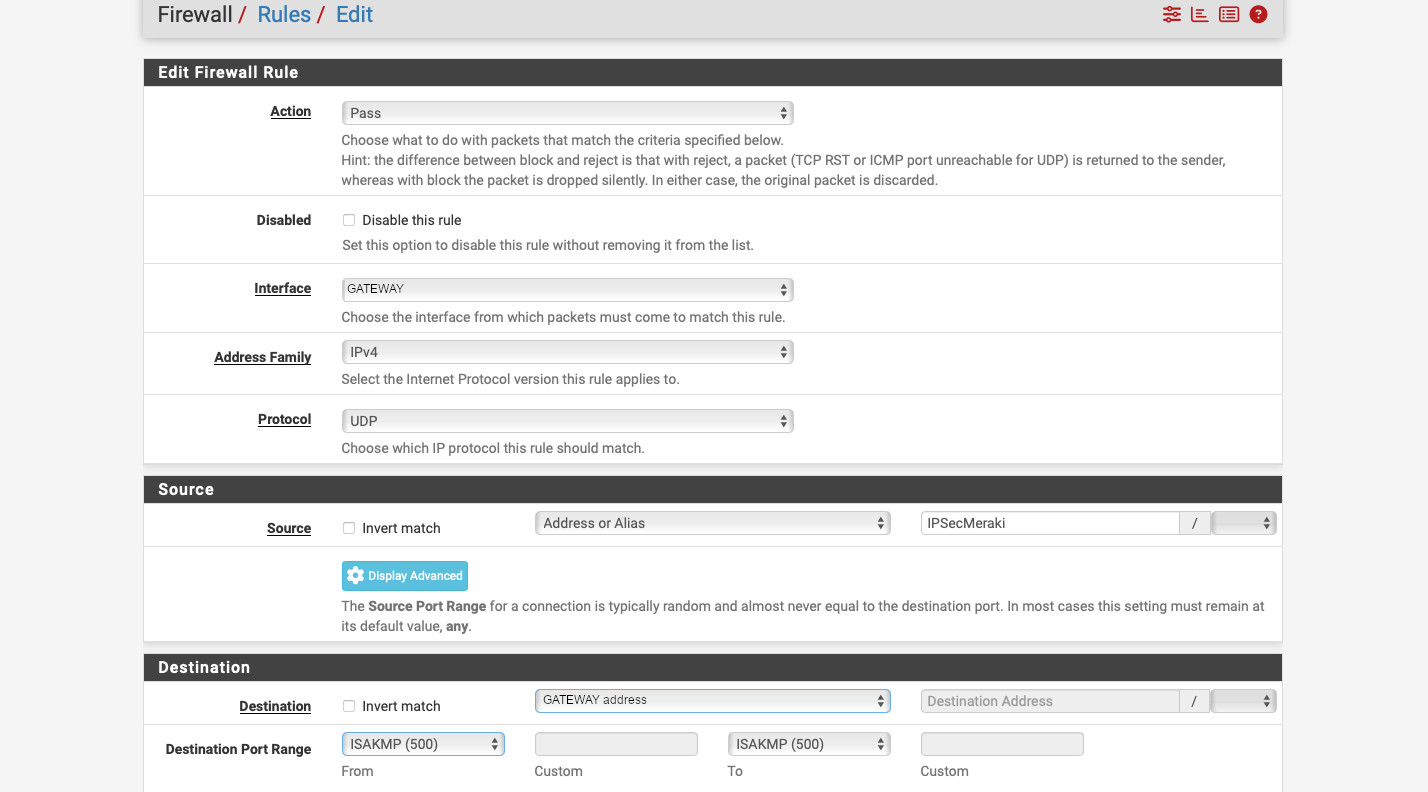
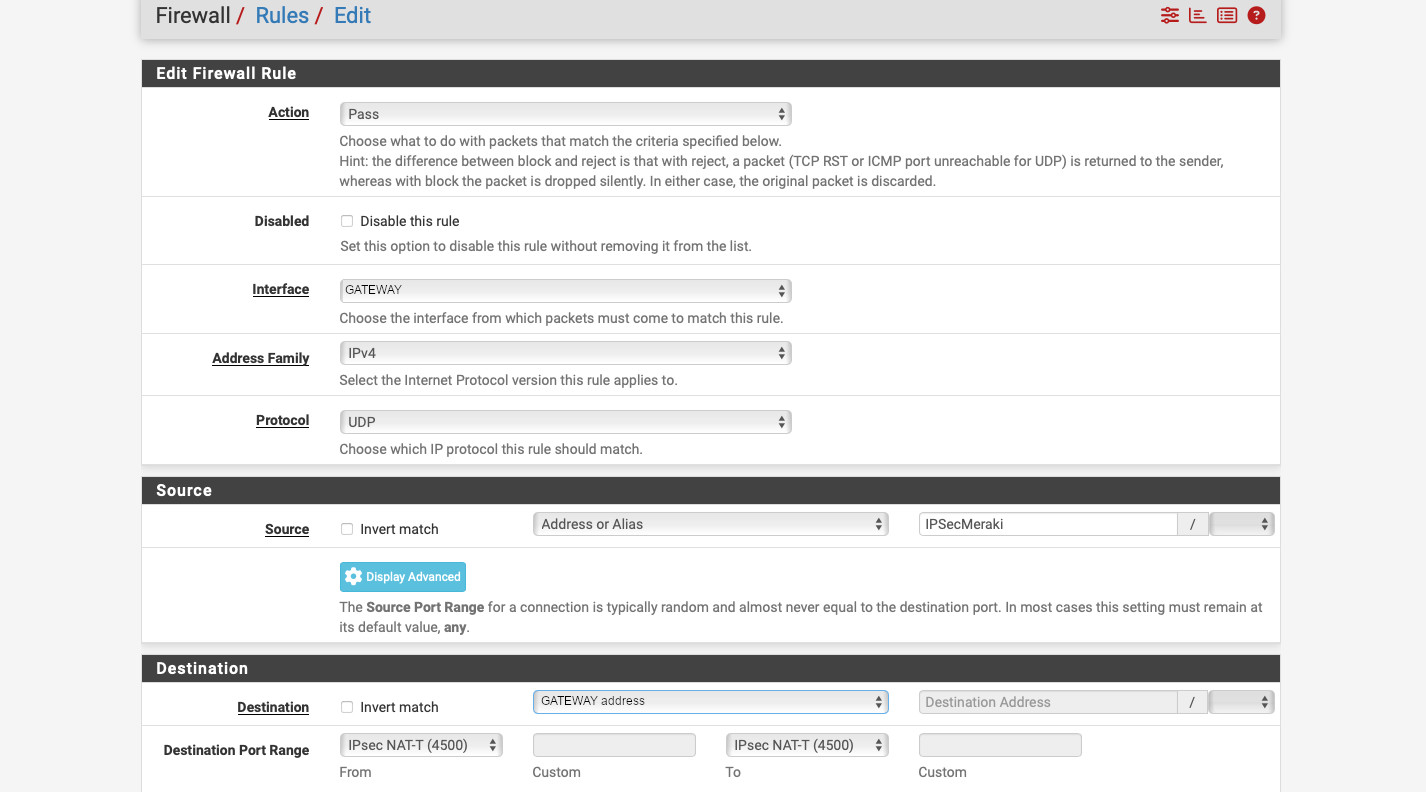
    Now, go to Firewall -> Rules -> GATEWAY (or whatever your internet connected interface is called). There create 2 rules: one for ISAKMP and another for NAT-T. The screenshots are below, but:

    • Select “Action” “Pass”.
    • For “Interface” select “GATEWAY” (your internet connected interface).
    • “Address Family” “IPv4”.
    • “Protocol” “UDP” (as IPsec uses UDP for ISAKMP and NAT-T).
    • Select “Address or Alias” under “Source”. Start typing the alias name we created and it should auto-populate with the name.
    • In the “Destination” select “GATEWAY address”, where “GATEWAY” is your internet connected interface.
    • Click the blue “Display Advanced” button in the “Destination” section.
    • Select “ISAKMP (500)” for both “From” and “To” port ranges under “Destination Port Range”
    • Enter a description and click “Save”.
    • Repeat, but select “IPsec NAT-T (4500)” for the “Destination Port Range” to create a rule allowing NAT-T.
    • Save and click “Apply Changes”.

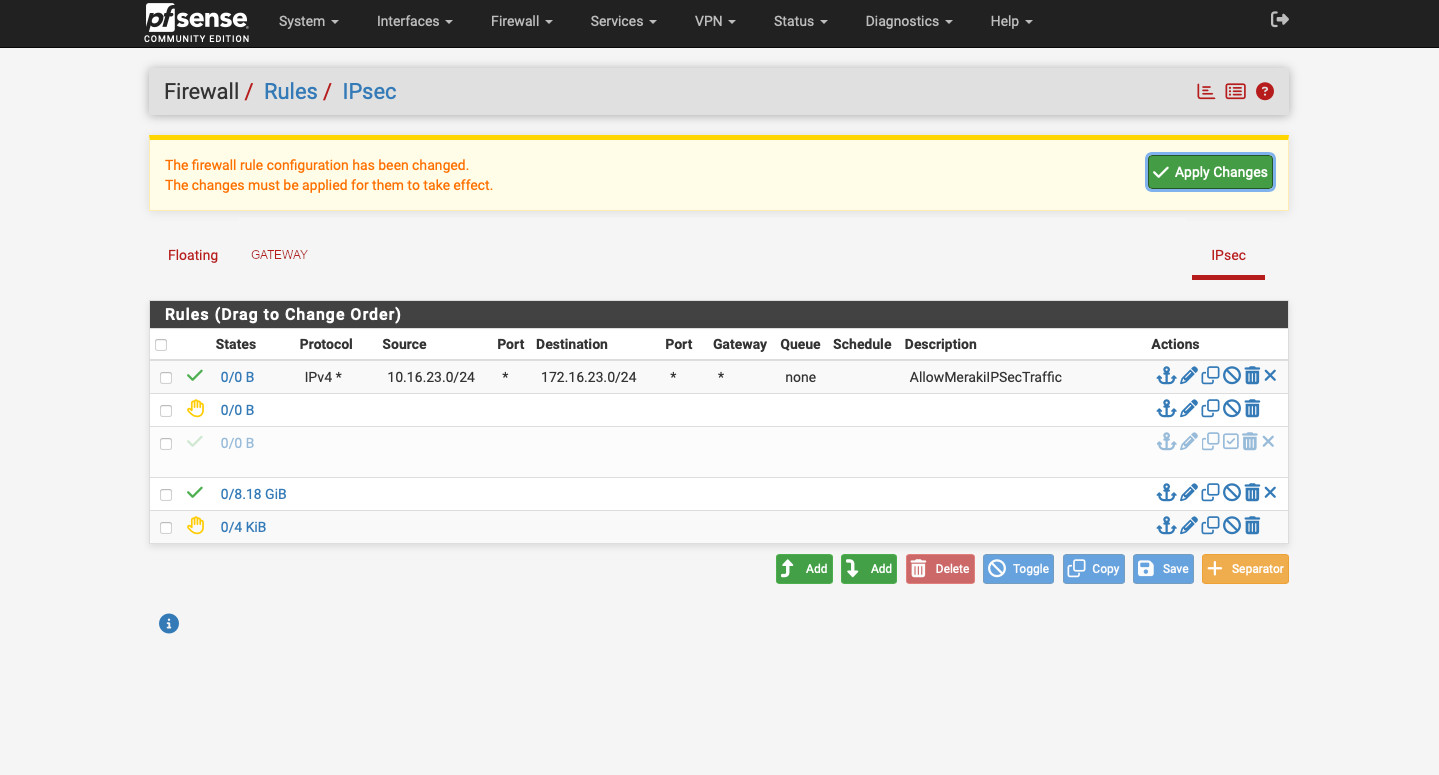
    Alright. Our tunnel should form now. But no traffic will flow through. It is because, unlike Meraki, pfSense denies the IPsec tunnel traffic by default. Let’s create rule allowing in. Go to Firewall -> Rules -> IPsec and create a new rule as follows:

    • “Action” – “Pass”.
    • “Interface” – “IPsec”.
    • “Address Family” – “IPv4”.
    • “Protocol” – “Any”.
    • “Source” – Meraki IP subnet, in our example it is “10.16.23.0/24”.
    • “Destination” – the subnet on pfSense that we’re setting up tunnel for, in this example “172.16.23.0/24”.
    • Enter the description, save, and apply changes.

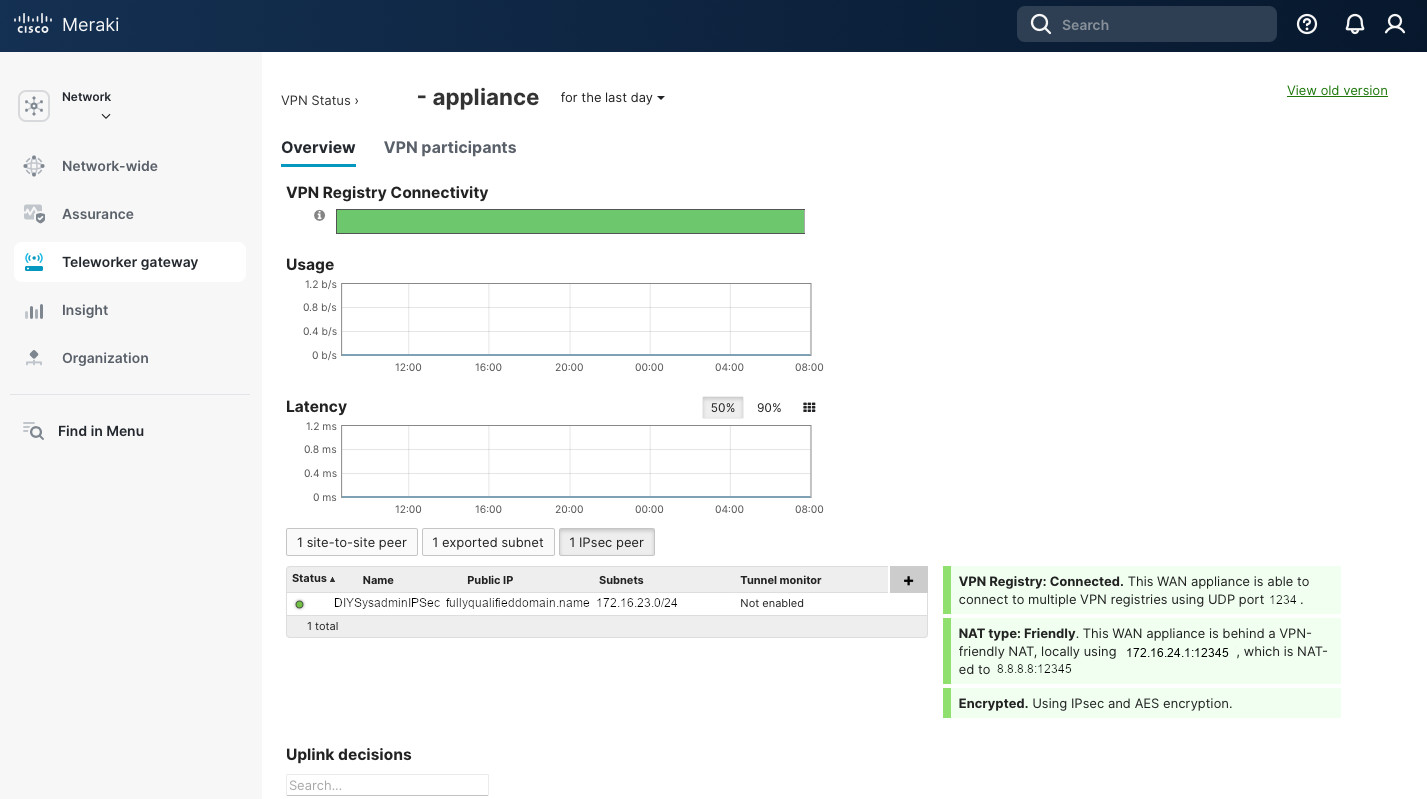
    Now we should be good. On pfSense go to Status -> IPsec to confirm that the tunnel is up and running. To do the same in the Meraki Dashboard, go to Security Appliance (Teleworker gateway) -> VPN Status -> 1 IPsec peer. It should have a green circle next to the tunnel name.

    This is it. Not too complicated. Just need to make sure that the parameter match between the peers, that proper IP subnets are advertised, and that the firewall rules allow communication. If the tunnel is not being established, take packet captures on the WAN interfaces of the Meraki and the pfSense appliances. Look for unidirectional traffic and troubleshoot from there. But that is a different post…

  • The Magic of Meraki.

    Recently, I was fortunate to spend a few months working for Cisco, doing tech support for their Meraki products. As an avid self-hoster, I was a bit apprehensive about the idea of a cloud managed networking platform. But boy was I wrong.

    The whole experience was a lot of fun. I helped foreign ministries with their Meraki onboarding. I had a pleasure of assisting an animation studio that played a great role in my life growing up with their WiFi troubles. I troubleshot client VPN issues for my favorite watch brand, discovering an unexpected behavior, and worked with the product team to improve the customer experience.

    I don’t think anyone has doubts that Meraki’s hardware is solid. Meraki is a part of Cisco, they know how to build networking equipment. In many ways, they are Networking. But other vendors make solid networking equipment as well. And I would argue that Meraki’s secret sauce is not the hardware, it’s the Meraki Dashboard.

    Meraki Dashboard is a management plane for the Meraki equipment (duh). It allows for full management control of the equipment. In fact, there’s very little you can do on the Meraki devices locally: just set up an IP address, and get a SDB (support data bundle). And I experienced its power.

    As an “enterprise. at home” enthusiast, I wanted to lay my hands on a Meraki device, their MX security appliance, in particular. After hours of deliberations on which MX to get, I got a Z4 teleworker gateway. The Z-series appliances are also known as “baby MX”, so I think it was fitting.

    On the way home, sitting in the airport with nothing better to do, I decided to configure my yet-to-be-received teleworker gateway. I created a Meraki Dashboard organization, a network, and went ahead configuring it. I created VLANs, decided on the IP subnetting scheme, created SSIDs and firewall rules.

    A few days later, when I got my Z4 (every time I say Z4, I think of BMW, it’s really a shame that they’re discontinuing their Z4), I claimed it to my organization and assigned it to the network I created while at the airport. And that’s it. All I needed to do was to plug a network cable into the port labeled “Internet” and to provide power. The Z4 pulled the configuration from the dashboard and was up and running. I guess I still needed to plug it in, so not “true” zero-touch provisioning. Maybe 0.2-touch provisioning? Rounding down it would be zero-touch provisioning, good enough for me.

    This experience inspired me to explore the Meraki platform for the homelab application further. I’ll do a few posts on how it fits into my work flow, what works, what doesn’t, and the overall experience with the platform. We’ll probably start with the device onboarding, then will go into IPSec VPN and, its magical sibling, Meraki Auto-VPN.

    OK, this post’s been long enough, I better wrap it up. Till next time…